BACnet Discovery
Once the deployment is online, the next step is to discover the BACnet devices on your building network and begin collecting data. The BACnet tab on the Deployments page lets you configure network details, initiate a discovery, and monitor its progress, all from the Onboard App.
🔧 Configuring BACnet
Before running a discovery, make sure the BACnet configuration is correct. A BACnet configuration is pre-generated for your deployment using the standard BACnet port (47808). Verify that the IP and BACnet port are correct.
If you'd like to make changes to this configuration, or add a new one, here's how.
✏️ Edit BACnet Configuration
- Click the pencil icon for the configuration you want to edit.
- You can edit the following:
- Network: Select the appropriate network from the dropdown. If multiple networks are listed, confirm the correct IP with your IT team
- Poll Frequency: The default is 60 seconds. Increase this interval if you do not need granular data for your use case.
- Foreign Address (Optional): Enter the IP address of a controller or BBMD on another subnet. The Edge Node will connect to it and discover the devices it knows about. Learn more about BBMDs and Foreign Devices if you'd like to read further.
- Click Save to apply your configuration.
➕ Add a BACnet Configuration
This is useful when your building has devices communicating on non-standard BACnet ports.
- Click the + button on the top-left panel.
- In the menu that opens, set the following:
- IP: The IP subnet the BACnet discovery will run on, Select the available IP network the configuration will run on.
- BACnet Port: Enter the port number the devices communicate on. The standard BACnet port is 47808, though some vendors use non-standard ports (for example, Siemens devices often use 47807).
- Poll Frequency: Set the rate at which devices are polled for data (default is 60 seconds).
- Foreign Address (Optional): Enter the IP address of a controller or BBMD on another subnet. The Edge Node will connect to it and discover the devices it knows about.
- Click Save to apply the configuration.
You can create multiple configurations this way, which allows the Edge Node to collect from devices across different ports on your network.
🔍 Run a Discovery
Once your BACnet settings are saved, you are ready to launch a discovery.
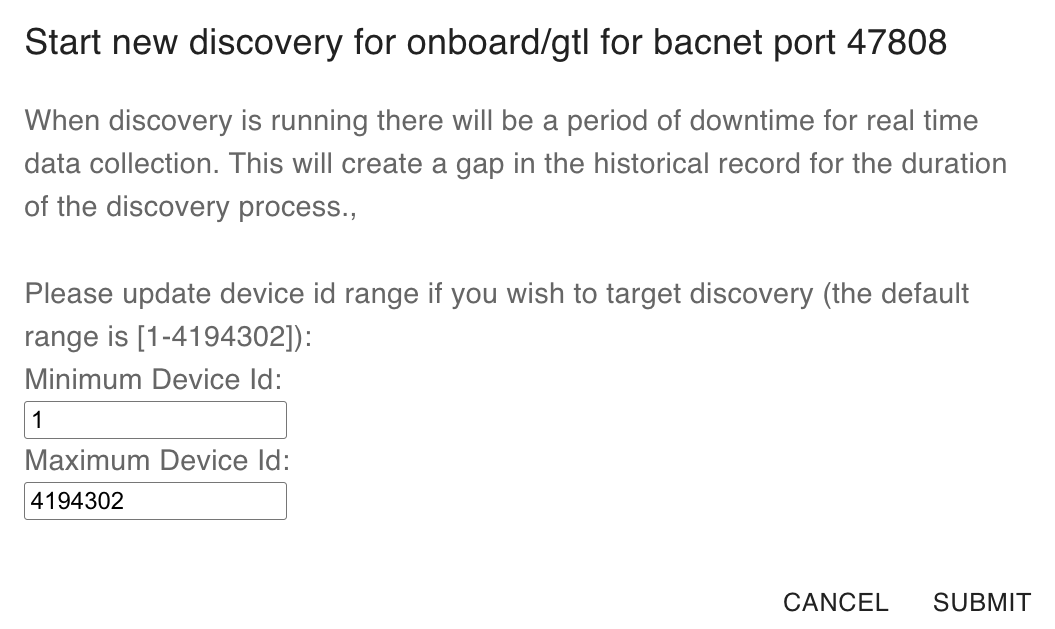
- Click the Actions button (next to the pencil icon).
- You will see a device ID input field where you can specify the range of BACnet device IDs to scan.
There are two types of discoveries you can run:
- Global Discovery (Recommended for First Discovery): Scans for all discoverable devices on the network across the full BACnet device ID range [1–4194302]. To run a global discovery, click Submit without entering any device IDs. The Edge Node will perform a network-wide scan and return all discoverable devices.
- Targeted Discovery: Scans a specific range of device IDs for faster, more controlled results. To run a targeted discovery, enter the smallest and largest device IDs in the range (e.g., 1020–1029). The Edge Node will scan all devices within that range, including the boundary IDs.
📊 Monitor Discovery Status
Once a discovery is initiated, you can track its progress directly on the BACnet tab through the Latest Discovery Status column.
Use the refresh button on the BACnet tab to check for status updates. Depending on the network size and number of devices being scanned, a discovery can take anywhere from a few minutes to over an hour to complete.
⚙️ Behind the Scenes
During discovery, the Edge Node communicates with BACnet devices using broadcast messages on the building network. Device information, equipment, and points discovered during this process are securely transmitted to the Onboard Cloud and made available in the Staging Interface for AI modeling and publishing.
If a BACnet device is found but has no points exposed on the network, the Edge Node will automatically skip it. Devices with 0 points do not appear in the Staging Interface.